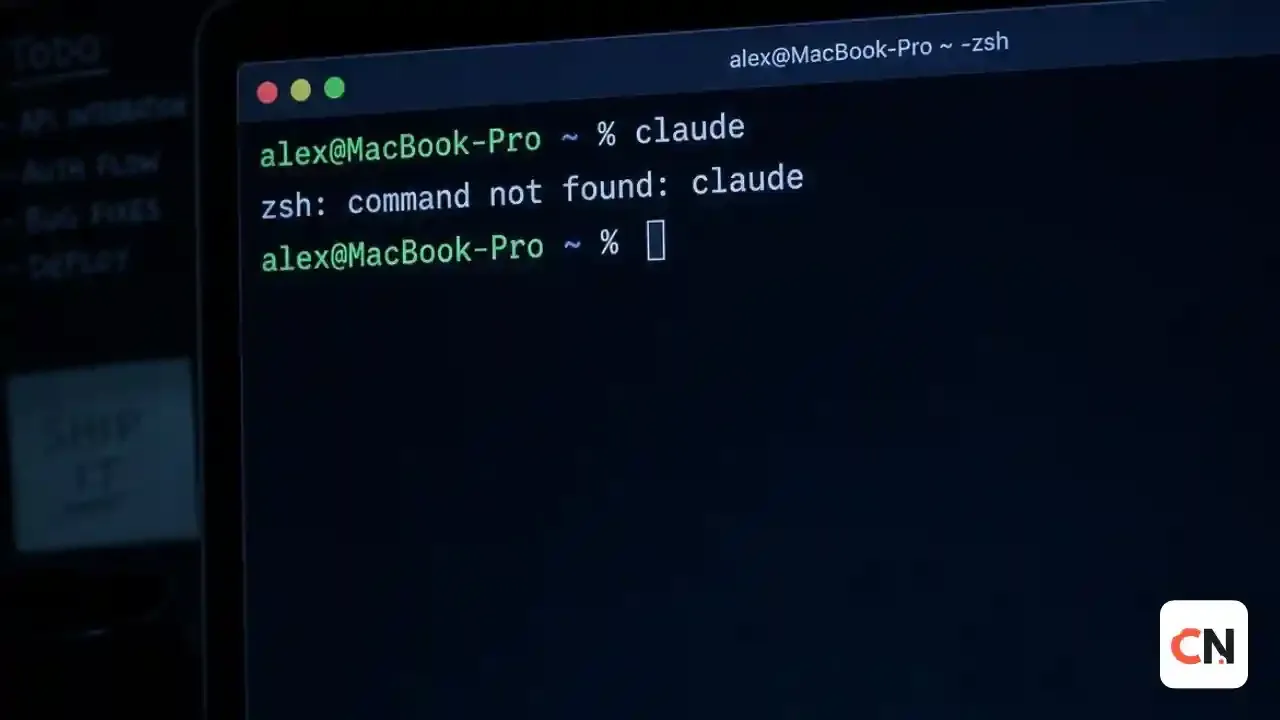
Claude Code Command Not Found: Fix It in 2 Minutes
You ran the installer, it said it finished, and then your terminal answered claude: command not found. Almost always, Claude Code is installed fine and your terminal just cannot see it. Here is everything you need to know to fix it.
Find Your Error First
| What you see | Where you are |
|---|---|
zsh: command not found: claude | macOS (Terminal or iTerm) |
bash: claude: command not found | Linux or WSL |
'claude' is not recognized as an internal or external command | Windows CMD |
claude : The term 'claude' is not recognized as the name of a cmdlet | Windows PowerShell |
Jump to the section that matches your system below.
Why This Happens
The native installer puts Claude Code in a folder that is not always on your PATH yet:
- macOS and Linux:
~/.local/bin/claude - Windows:
%USERPROFILE%\.local\bin\claude.exe
PATH is the list of folders your terminal searches when you type a command. If ~/.local/bin is not on that list, the terminal says "not found" even though the file exists.
Fix on macOS and Linux
First check whether the folder is on your PATH:
echo $PATH | tr ':' '\n' | grep -Fx "$HOME/.local/bin"If it prints your path, the folder is fine and you can jump to the "Check for Conflicting Installs" section. If it prints nothing, add it.
Zsh (default on macOS):
echo 'export PATH="$HOME/.local/bin:$PATH"' >> ~/.zshrc
source ~/.zshrc
Bash on Linux:
echo 'export PATH="$HOME/.local/bin:$PATH"' >> ~/.bashrc
source ~/.bashrc
Bash on macOS: add the same line to ~/.bash_profile instead, because Terminal on macOS starts Bash as a login shell. If you already have a ~/.bash_login or ~/.profile and no ~/.bash_profile, put the line in that file.
Using fish or another shell? Add ~/.local/bin to your PATH with that shell's own syntax, then restart the terminal.
Now confirm it worked:
claude --versionYou should see a version number.
Fix on Windows PowerShell
Check whether the install folder is on PATH:
$env:PATH -split ';' | Select-String '\.local\\bin'If nothing shows up, add it to your User PATH:
$currentPath = [Environment]::GetEnvironmentVariable('PATH', 'User')
[Environment]::SetEnvironmentVariable('PATH', "$currentPath;$env:USERPROFILE\.local\bin", 'User')
Close the terminal, open a new one, and run claude --version.
Fix on Windows CMD
Check the PATH:
echo %PATH% | findstr /i "local\bin"If it prints nothing, open System Settings, go to Environment Variables, and add %USERPROFILE%\.local\bin to your User PATH variable. Restart the terminal and run claude --version.
Check You Used the Right Install Command
Many "not recognized" errors on Windows come from pasting a command meant for a different shell. Anthropic's native install commands are:
| Where | Command |
|---|---|
| macOS, Linux, WSL | curl -fsSL https://claude.ai/install.sh | bash |
| Windows PowerShell | irm https://claude.ai/install.ps1 | iex |
| Windows CMD | curl -fsSL https://claude.ai/install.cmd -o install.cmd && install.cmd && del install.cmd |
Quick tells: if you see 'irm' is not recognized, you are in CMD, not PowerShell. If you see The token '&&' is not a valid statement separator, you are in PowerShell, not CMD. Your prompt shows PS C:\ in PowerShell and plain C:\ in CMD.
Installed Only the VS Code Extension?
The VS Code extension keeps its own private copy of Claude Code for its chat panel and does not add claude to your PATH. If you only installed the extension, ~/.local/bin/claude will not exist. Run one of the standalone install commands above to use claude in a terminal.
Using WSL on Windows?
Install and launch Claude Code inside the WSL terminal, not from PowerShell or CMD. Open your WSL distribution and run the Linux command (curl -fsSL https://claude.ai/install.sh | bash).
Check for Conflicting Installs
If claude runs but shows the wrong version, or you installed it more than one way, check what the terminal finds.
macOS and Linux:
which -a claude
ls -la ~/.local/bin/claude
npm -g ls @anthropic-ai/claude-code 2>/dev/null
A native install shows ~/.local/bin/claude as a symlink into ~/.local/share/claude/versions/. An older npm install can also be in the way.
Windows PowerShell:
where.exe claude
Test-Path "$env:USERPROFILE\.local\bin\claude.exe"
Installed With Homebrew, WinGet or npm?
Other install methods, straight from the docs:
# Homebrew
brew install --cask claude-code

# WinGet
winget install Anthropic.ClaudeCode

# npm (needs Node.js 22 or later)
npm install -g @anthropic-ai/claude-code
If Homebrew says Cask 'claude-code' is unavailable, refresh it with brew update and run the install again. Do not use sudo with npm install, since it can cause permission problems.
Still Stuck? Run the Built-in Check
claude doctorThis prints read-only diagnostics about your install and settings and suggests fixes. It does not start a session. Once claude --version works, run claude to log in. If login fails, see our Claude unable to authenticate fix.
Using other AI coding tools too? Our Codex CLI setup guide and Codex CLI update notes cover the same kind of setup.
Frequently Asked Questions
Why does Claude Code say command not found after installing?
The install worked but the folder holding claude (~/.local/bin on Mac and Linux, %USERPROFILE%\.local\bin on Windows) is not on your PATH yet. Add it and open a new terminal.
How do I add Claude Code to PATH on Mac?
Run echo 'export PATH="$HOME/.local/bin:$PATH"' >> ~/.zshrc and then source ~/.zshrc. Then check with claude --version.
Why is claude not recognized on Windows?
Either the install folder is missing from your User PATH, or you ran an install command meant for a different shell. Add %USERPROFILE%\.local\bin to PATH and restart the terminal.
Does the VS Code extension install the claude command?
No. The extension bundles its own copy for its chat panel and does not add claude to PATH. Run the standalone installer to use it in a terminal.
Do I need Node.js to run Claude Code?
Not for the native installer. Only the npm install method needs Node.js 22 or later.
How do I check my installation?
Run claude --version for the version and claude doctor for a full read-only health check.

Sia is the co-founder of Corenexis and one of the earliest voices shaping its editorial direction. With years of hands-on experience covering AI and technology, she has been writing about the digital world long before it became everyone's favorite topic — and she still does it better than most.
View all posts by Sia →

0 Comments
Community guidelines
We want the comments to be useful for every reader. Every comment is reviewed before it is published. A comment will not be approved if it is:
Keep it genuine and on-topic and it will be approved quickly. Thank you for helping keep the discussion clean.