
How to Use Veo 3.1 Gemini for AI Video Creation
Veo 3.1 Gemini is a powerful AI tool for creating short videos from text, images, and audio. Whether you’re a beginner or a professional content creator, this guide explains everything you need to know about steps how to use, free vs paid plans, daily limits, video quality, and audio/music features.
Read Now: Veo 3.1: Google’s Latest AI Video Generation Tool
Step 1: Install the Gemini App
- Open Google Play Store (Android) or App Store (iOS) on your phone.
- Search for “Gemini AI” and install the app.
- Once installed, open the app.
Step 2: Login / Signup
- Open the app and login/signup using your Google account or email.
- Check the paid plans (Pro/Ultra) because Veo 3.1 offers more features in the paid version.
Step 3: Open the Video Section
- On the main interface, tap the “Video” option.
- Here, you’ll find the Veo 3.1 Video Generation interface.
Step 4: Provide Inputs for the Video
- Text Prompt: Type your video idea (example: “A flying car over mountains at sunset”).
- Images (Optional): Upload up to 3 reference images.
- Audio (Optional): Add background music or voiceover.
Step 5: Set Video Settings
- Duration: Maximum 8 seconds.
- Aspect Ratio: Choose 16:9 (Landscape) or 9:16 (Portrait).
- Output Quality: 720p or 1080p.
Step 6: Generate the Video
- Once all settings are ready, tap the “Generate” button.
- Veo 3.1 AI will create the video based on your inputs.
Step 7: Preview and Save
- After generation, preview your video.
- If satisfied, tap Download or Share.
Step 8: Tips for Better Results
- Cinematic Look: Add words like “cinematic lighting” or “slow motion” in your text prompt.
- Smooth Transitions: Provide first frame and last frame images.
- High Quality: Select 1080p output for a crisp video.
Free Plan (Limited Access)
The free version is perfect for beginners or casual users who want to test Veo 3.1 AI.
Features of Free Plan:
- Daily Video Limit: 3 videos per day.
- Video Duration: Up to 8 seconds.
- Output Quality: Maximum 720p.
- Inputs: Text prompt, optional images (up to 3), optional audio.
- Music/Audio:
- Limited stock music tracks available.
- You can upload your own voiceover, but editing options are basic.
Tips for Free Users:
- Use short, simple prompts to save daily video credits.
- Keep videos under 8 seconds for smooth generation.
- Use low-resolution output (720p) to reduce processing time.
Paid Plans (Full Access)
Paid plans unlock full Veo 3.1 capabilities, higher daily limits, better quality, and advanced features.
A. Pro Plan
- Daily Video Limit: 5 videos per day.
- Video Duration: Up to 8 seconds.
- Quality: Up to 1080p.
- Features: Advanced video effects, cinematic prompts, smooth transitions.
- Music/Audio: Access to more music tracks, ability to add/edit voiceovers.
- Cost: Approx ₹1,499/month.
- Best For: Casual creators wanting better quality and more daily videos.
B. Ultra Plan
- Daily Video Limit: 10 videos per day (or 500 prompts per day for heavy users).
- Video Duration: Up to 8 seconds, full HD 1080p.
- Features: Full Veo 3.1 capabilities including cinematic effects, first & last frame transitions, AI-enhanced rendering.
- Music/Audio:
- Full library of music tracks (cinematic, upbeat, and custom).
- Multi-layered audio tracks.
- AI-assisted background music matching with video scenes.
- Custom sound effects and advanced audio editing.
- Cost: Approx ₹12,499/month.
- Best For: Professionals, YouTubers, or content creators producing high-quality AI videos regularly.
Audio / Music in Veo 3.1 Videos
Music and audio are important for making videos engaging. Veo 3.1 provides options in both free and paid plans:
| Plan | Background Music | Voiceover & Audio Editing |
|---|---|---|
| Free | Limited stock tracks | Upload your own voiceover (basic) |
| Pro | More music tracks | Add/edit voiceover, basic volume control |
| Ultra | Full music library | Multi-layered audio, AI music sync, custom sound effects, advanced editing |
Pro Tip: Free users can also add external royalty-free music using any simple video editor for better cinematic effects.
Summary Table
| Plan Type | Daily Video Limit | Max Quality | Music/Audio | Features |
|---|---|---|---|---|
| Free | 3 videos | 720p | Limited stock music + own voiceover | Basic features |
| Pro | 5 videos | 1080p | More music tracks + voiceover editing | Advanced video features |
| Ultra | 10 videos | 1080p | Full music library + advanced audio editing | Full Veo 3.1 features |
Key Tips for Best Results
- Cinematic Look: Use prompts like “cinematic lighting” or “slow motion”.
- Smooth Transitions: Provide first and last frame images.
- High Quality: Always select 1080p for crisp visuals (paid plans).
- Audio Sync: For paid users, use AI music matching for better impact.
Examples: 1
Input Image with these prompts: Tracking shot following a smiling woman dressed in a delicate cotton saree with subtle floral prints. Her hair is in a soft bun, and she has minimal jewelry. She walks with ease on a warm, well-lit street, surrounded by muted street activity. The fabric of her saree billows slightly.
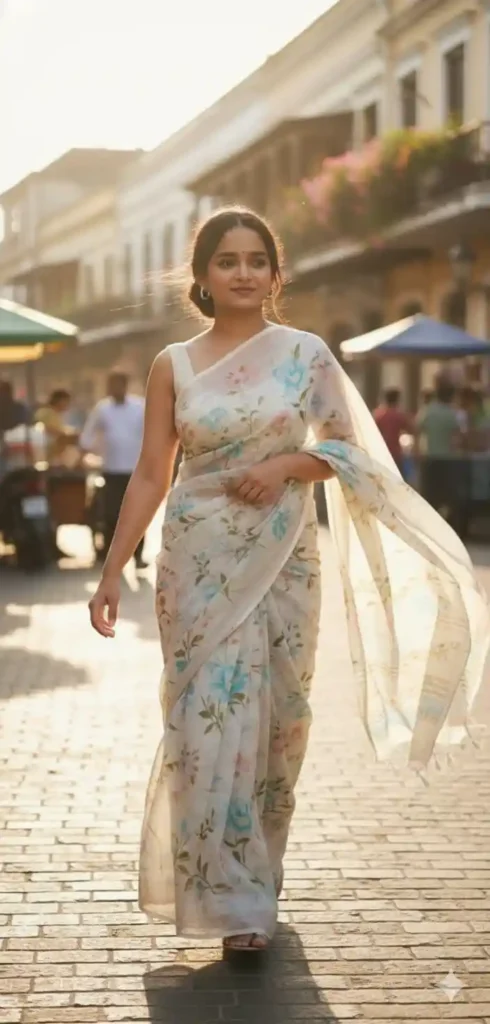
Here is th output of Image with video & music:
Examples: 2
Input Image with these prompts: Cinematic medium close-up shot of a young person with a radiantly happy, genuine smile, their face softly illuminated by the golden light of a vibrant, warm sunset. They are standing in a sunny, blooming garden. Several delicate, colorful butterflies are gently fluttering and circling around them. The camera performs a very slow, gentle dolly-in on the person's face. The lighting is soft, dreamy, and golden hour aesthetic. Ambient sound of gentle summer breeze, distant birdsong, and the soft fluttering of butterfly wings.
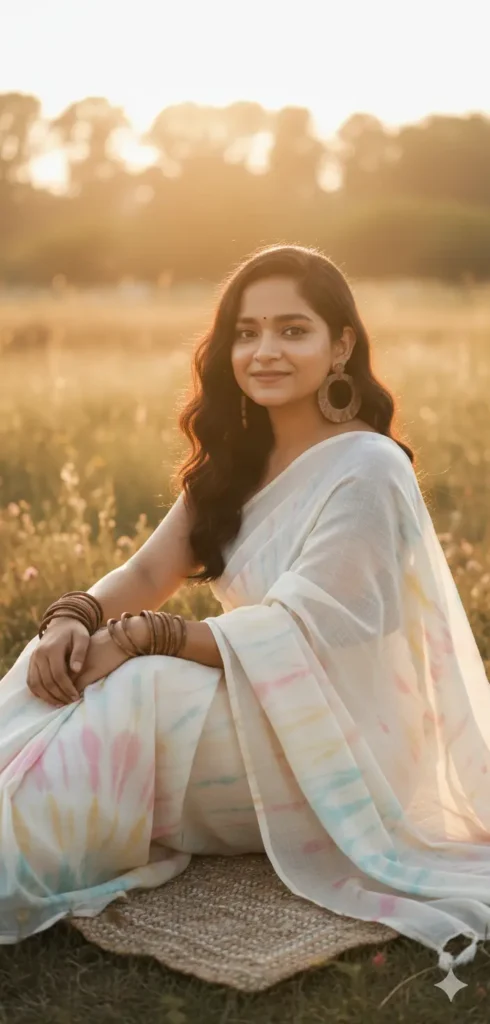
Here is th output of Image with video & music:
Examples: 3
Input Image with these prompts: A wide, cinematic shot of a beautiful young Indian woman in a flowing peach-colored saree, walking barefoot on the wet sand of a secluded beach during the magical golden hour of sunset. The waves are gently rolling in, and the wind subtly billows the end of her saree. She pauses and looks out at the vast ocean, appearing to be in deep thought and whispering a secret to the sea. The camera slowly pans and tracks alongside her as she walks.
Suddenly, a small, playful tabby cat with bright green eyes appears and playfully rubs against her ankle. She stops, her contemplative expression instantly softening into a warm, genuine smile. The camera cuts to a medium close-up as she gently bends down, scoops up the cat with love, and brings it close to her chest. She softly pets and strokes the happy, purring cat that is now nestled comfortably in her lap. The background is a soft-focus beach and the last glow of the sunset. Sound: Gentle lapping waves, the soft purr of a cat, and a quiet, ambient musical score with a hint of nostalgia.
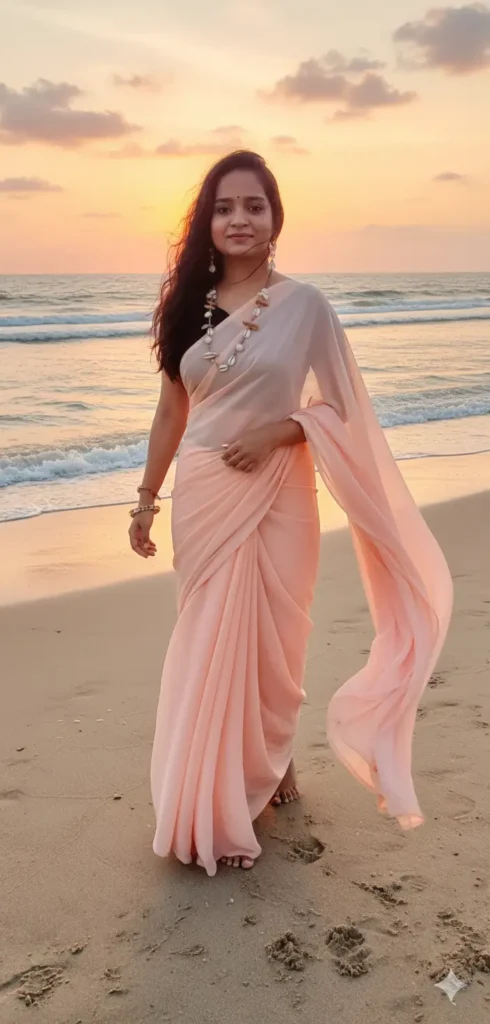
Here is th output of Image with video & music:

Sia is the co-founder of Corenexis and one of the earliest voices shaping its editorial direction. With years of hands-on experience covering AI and technology, she has been writing about the digital world long before it became everyone's favorite topic — and she still does it better than most.
View all posts by Sia →


0 Comments
Community guidelines
We want the comments to be useful for every reader. Every comment is reviewed before it is published. A comment will not be approved if it is:
Keep it genuine and on-topic and it will be approved quickly. Thank you for helping keep the discussion clean.